
1 Before you start
You need a monday.com account and a board to collect responses on. Installing an app requires admin rights — if you are not an admin, use Request to add on the marketplace page and an admin will be asked to approve it.
No account is needed on our side. ImageForm has no separate sign-up and no separate password: your monday account is your account.
2 Install ImageForm
Open the monday marketplace, search for ImageForm, and click Install. monday will show you which permissions the app asks for.
ImageForm asks for three: read your profile, read your boards, and write to your boards. The write permission is what lets a response become an item, and what lets the app create the columns your questions need.

3 Add it to a board
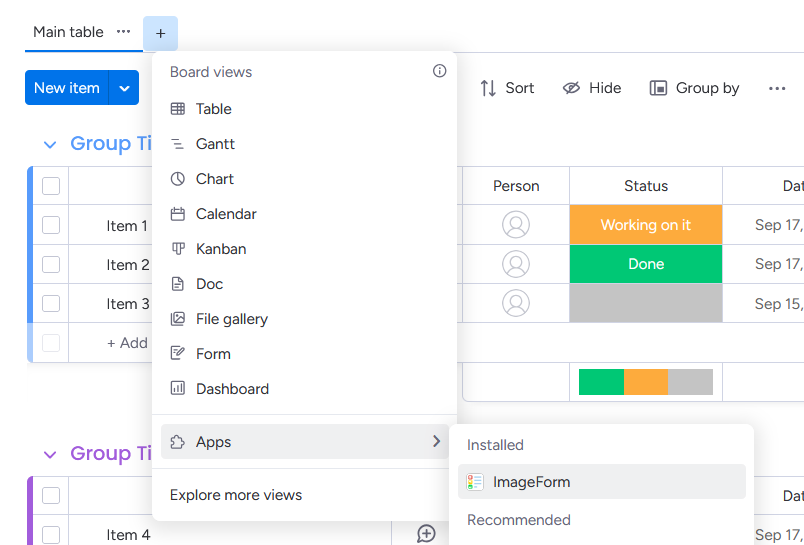
Open the board you want responses on. Click the + next to the view tabs at the top of the board, choose Apps, and pick ImageForm.
The view opens inside the board. The first time you open it, ImageForm creates an example form so you have something to look at rather than an empty page. You can edit every part of it or delete it and start over.
4 Grant access
The first time you open ImageForm, it asks you to grant access to monday. Click Grant access, confirm in the window that opens, close it, and click Check again. This happens once per account, not once per board.
Installing an app and granting it access are two separate things in monday. Installing makes the app available; granting access is what lets it read and write your board. Without this step the builder loads but cannot save anything to your board.
5 Build your first form
The first time you open ImageForm on a board, it asks where to start: from the columns of this board, from an example form, or from an empty sheet. Pick whichever fits — you can change it later, and the choice comes back as long as you have not edited anything yet.
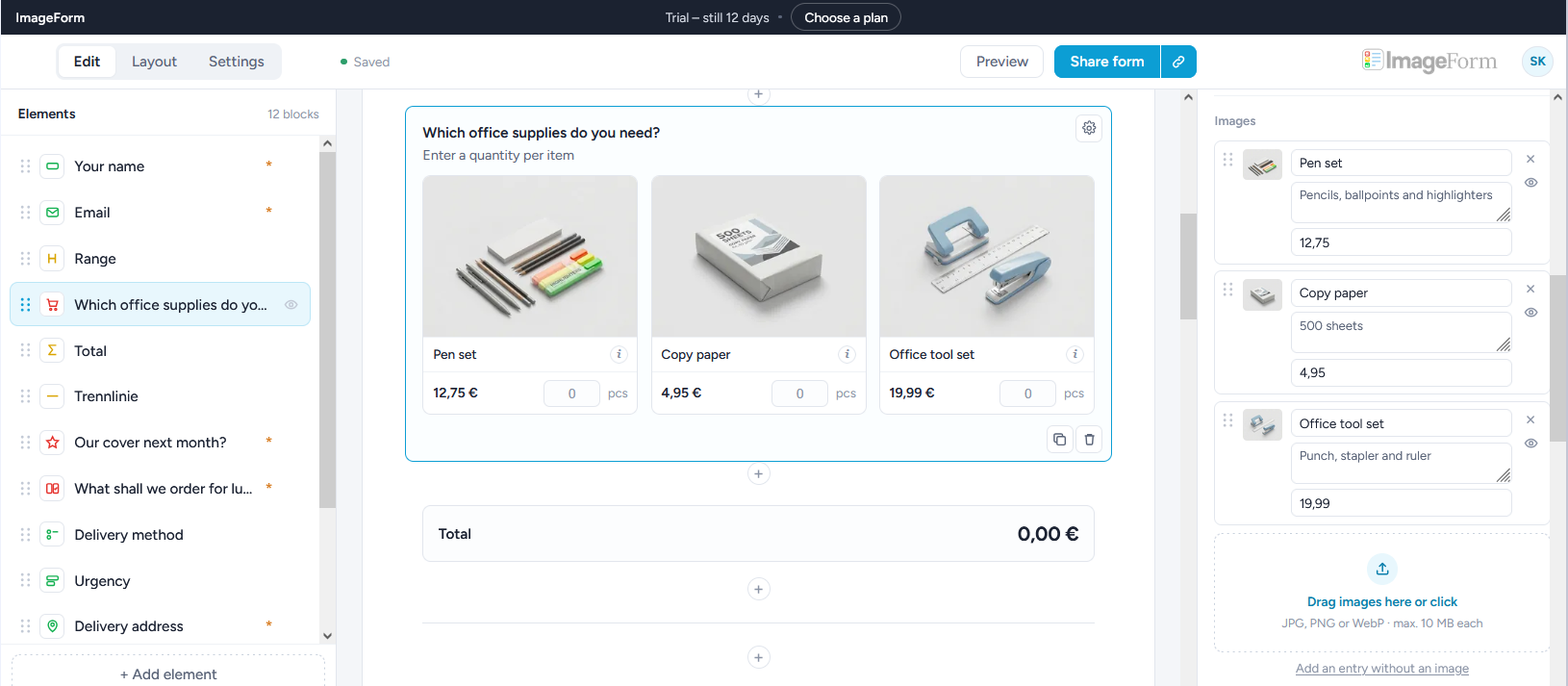
The builder has three areas: the block list on the left, the form in the middle, and the settings for whatever you selected on the right. Click + between two blocks to add a question there.
Add an image question, then upload a picture for each option. Drop the files straight onto the option, or click to choose them. Images are resized and converted on upload, so a photo straight from a phone is fine.
Use Preview in the header to see the form exactly as the person filling it in will. Changes save automatically.
6 Start from an existing board
If your board already collects answers — from monday's own forms, or filled in by hand — you do not have to type the questions again. Build a form from this board reads the columns and turns the ones you pick into questions. You find it as the board icon above the block list, and below the list whenever a form is still empty.
Nothing is decided for you. Every column is listed with its type and how often it has been filled so far, and nothing is ticked. What you leave unticked stays in the board untouched — status, owner, deadline and anything else your team fills in belongs there, not in the form. Columns that cannot become a question are listed too, with the reason next to them.
Quantities into one image question
Boards that grew out of order forms often carry one number column per article. Tick them, choose Combine with others into one image question, give the group a name, and pick what it should become: quantity, choice, or rating. In the board they all look the same — only you know what it was. Where the existing data suggests an answer, a note says so.
Each article keeps writing into its own existing column. That is the point of the whole exercise: views, formulas and automations built on those columns keep working.
Sections from a question
Mark a choice question as shows further questions depending on the answer, and every other question can be assigned to one of its answers. Out of one column and a handful of others, the form gets a branch: pick a department, see that department's items. What a section can do beyond that is in Branch on an answer.
The item name
The first row of the list is the item name — in monday that is not a column but the name of the row itself. Tick it and the answer becomes the name of the item, the way the first question does in a monday form. By default it is only the name; switch on also save in a column of its own if you want it in both places.
7 The three image questions
Every image question shows pictures instead of a list of words. What changes is what the person does with them.
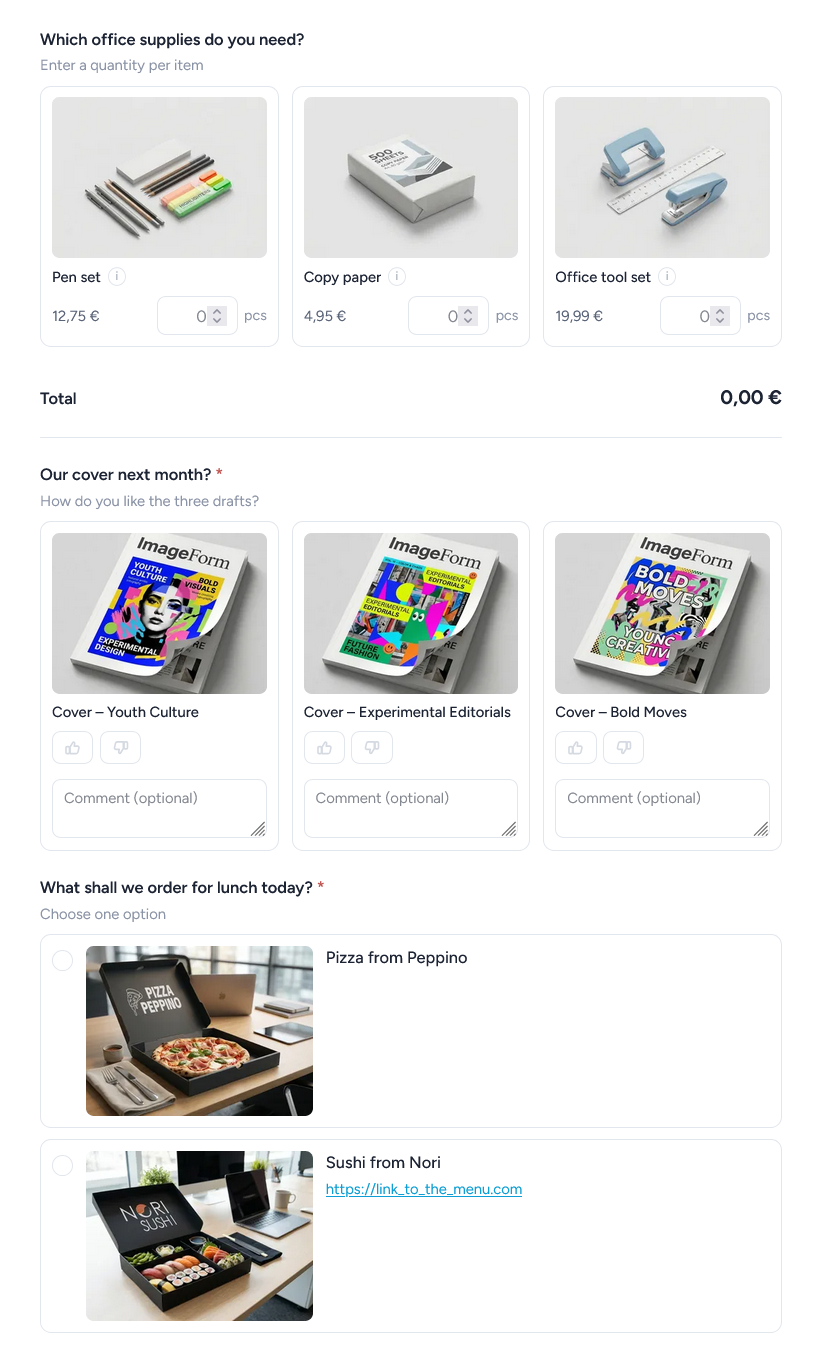
- Quantity — enter an amount next to each picture, either freely or from steps you define, such as 100 / 250 / 500. Add prices and the form calculates a total.
- Rating — rate each picture with stars or with thumbs up and down, with an optional comment. Use it for drafts and proposals.
- Choose — pick one picture, or several. Use it for variants, layouts, colours, or anything where seeing the option is the point.
Frame and fit
Every image question has a frame so the tiles line up: square, 4:3, 3:2, 16:9 — or auto, which takes the shape the pictures of that question have in common. Five business cards then give you a frame the shape of a business card.
Inside the frame the picture either fills it, cropping what sticks out — right for photos — or is shown whole, with the remaining space filled quietly. Use the second for business cards, flyers, logos and drafts, where nothing may be cut off.
8 Items from a board
Instead of uploading the pictures for an image question one by one, the question can take them from a monday board. Picture, title, description, price and availability then come from that board's columns, and they stay in sync with it. You maintain the catalogue in one place rather than in every form that uses it.
This pays off where the pictures are a stock you look after — a range of give-aways, a set of motifs, a lunch menu. For a one-off set, such as three cover drafts for this month, uploading them stays the simpler route.
Getting started
- From the menu — add From board under the image questions. Pick quantity, rating or choice, then the board, then the items.
- From an existing question — open it and click Link a board in the panel on the right.
- No catalogue yet? Create board builds one for you, in the same workspace as your form's board, with the right columns and a few example rows. Turn these items into a board does the same with the items you have already entered — the pictures are kept.
Choosing the columns
The dialogue asks which column holds the picture, and optionally which ones hold the description, the price and the availability. The title comes from the item name unless you point it at a column — boards often carry an article number as the name while the form should show something readable.
Then you tick the items. A tick on a group means the group as a whole, so anything added there later joins in if you switch that on. A tick on single items means exactly those. Unticking one item inside a ticked group keeps it out while the rest of the group carries on.
Availability and stock
Availability can come from a number column — 0 or empty means unavailable, and the figure also caps the order quantity — or from a status column, where you choose which labels count as available. Unavailable items are either greyed out and locked, or left out entirely; that is your choice. If nothing is available, the question drops its required flag so an empty question cannot block the form.
For quantity questions you can also switch on Reduce stock: after each submission the ordered amount is deducted in the catalogue board. That is reserved stock, not shipped stock, and cancellations have to be booked back by hand. You decide whether people may order more than is in stock; if they may not, a submission that no longer fits comes back with a note.
Good to know
- Pictures from the board are copied to our server so that people filling in the form can see them — monday's own file links expire and need a login.
- The board is read a few times an hour, not on every visit. A change in the board shows up shortly afterwards; Sync now fetches it straight away.
- Unlinking keeps everything as it stands: titles, descriptions, prices and pictures are frozen and yours to edit again. Changes in the board no longer have any effect.
- ImageForm only ever writes to a catalogue board in two cases: when it creates one for you, and when it reduces stock after an order.
9 The other question types
Not everything is a picture. Next to short and long text, numbers, email, date, single and multiple choice, status and address, three types are worth a word of their own.
- Phone — country in front, number behind. The number always reaches the board with its country code: type “0351 12345” and it arrives as “+49 351 12345”. You set the default country and whether the person may change it.
- Link — a web address, written into a real link column, clickable in the board. “www.example.com” is enough; the rest is added.
- File — up to five files per question, dropped onto the field or picked from several folders one after another. The files go straight into a file column of your board and never touch our storage, so they do not count against your plan.
Total or list
The Total / List block collects the quantity questions above it. As a total it adds up the prices and writes the goods value to the board. As a list it shows what was ordered, with quantities and without any amounts — for internal orders where no one should see prices but everyone wants to read back what they entered. The list is not written to the board.
Asking for consent
Under Settings › Privacy you can require a tick before the form can be sent. You write the sentence yourself, and the label and address of the link that follows it. The consent is stored with the submission, together with the wording that was agreed to — that wording may change later, the record should not.
10 Branch on an answer
One form often has to serve several cases. A lunch order asks different things about pizza than about sushi; a request form asks the warehouse for a part number and the office for a cost centre. Three forms would mean three links, three boards and three sets of columns. A section keeps it as one form and shows only the part that fits the answer.
Grouping comes first
Add a Section block and drag questions into it. The block list indents whatever belongs to it, and while you drag, the dashed gap shows where the block will land: indented means inside the section, flush means the top level. To take a block back out downwards, drop it below the last row or move the mouse to the left of the indent.
Give the section a name. It is for you, in the block list, unless you switch on Show heading in the form. Without a condition a section does nothing but group, and is always shown — on a long form that alone is worth having.
The condition
Under Shown when, pick a question and the answer that should open the section. From then on it is part of the form only when that answer is given. The condition points at the answer itself, not at its wording, so renaming “Sushi” to “Sushi from Nori” later leaves the branch intact.
A question qualifies as the trigger if it gives exactly one answer out of a fixed list: single choice, status, or an image choice set to one answer. It also has to stand above the section and not sit inside a section itself. Multiple choice does not qualify — with three answers ticked there would be no saying which branch applies — and neither does a gallery, which collects nothing at all. The builder offers only what qualifies, and says so when nothing does.
Several sections may hang on the same answer and then appear together. A chain symbol next to an answer tells you it already steers another section, before you pick it.
What a closed section means
A section that does not apply is not greyed out and not hidden by a stylesheet — it is absent. Its questions ask nothing, a required question inside it holds nothing up, its columns in the board stay empty, and a total skips it. The form shows and hides it as the answer changes, but what counts is worked out again when the form is sent: anything sent in for a closed section is dropped.
If you later delete the question a section hangs on — or drag it into a section itself, where it can no longer steer anything — the sections that depended on it are shown from then on, not dropped. A form with questions silently missing is worse than one showing too much. The builder asks first and says how many sections it affects.
A section is either conditional or hidden, never both: a hidden section would never appear whatever the answer. Sections do not nest. And the Pass on block of a co-fill form belongs at the top level, not inside a section — see Fill one form together for why.
11 One link per audience
Any question can take its answer from the link that opens the form. Switch on
Prefill from the link in the question, give it a short name such as
audience, and send
…/form/abc?audience=Option%201.
Three ways to show it: editable fills the answer in as a suggestion, locked shows it without letting anyone change it, and hidden leaves it out of the form entirely while still sending it along. For a question that steers sections, “locked” is usually right: people see which branch they are in, but cannot switch.
You do not have to build those links by hand. With prefilling switched on, every answer in
the question gets a small chain icon that copies the finished link, spaces and accents
encoded correctly. Several parameters can be combined with &.
This is convenience, not protection: anyone holding the link can edit it. For real separation use separate forms with a password.
13 Where answers land
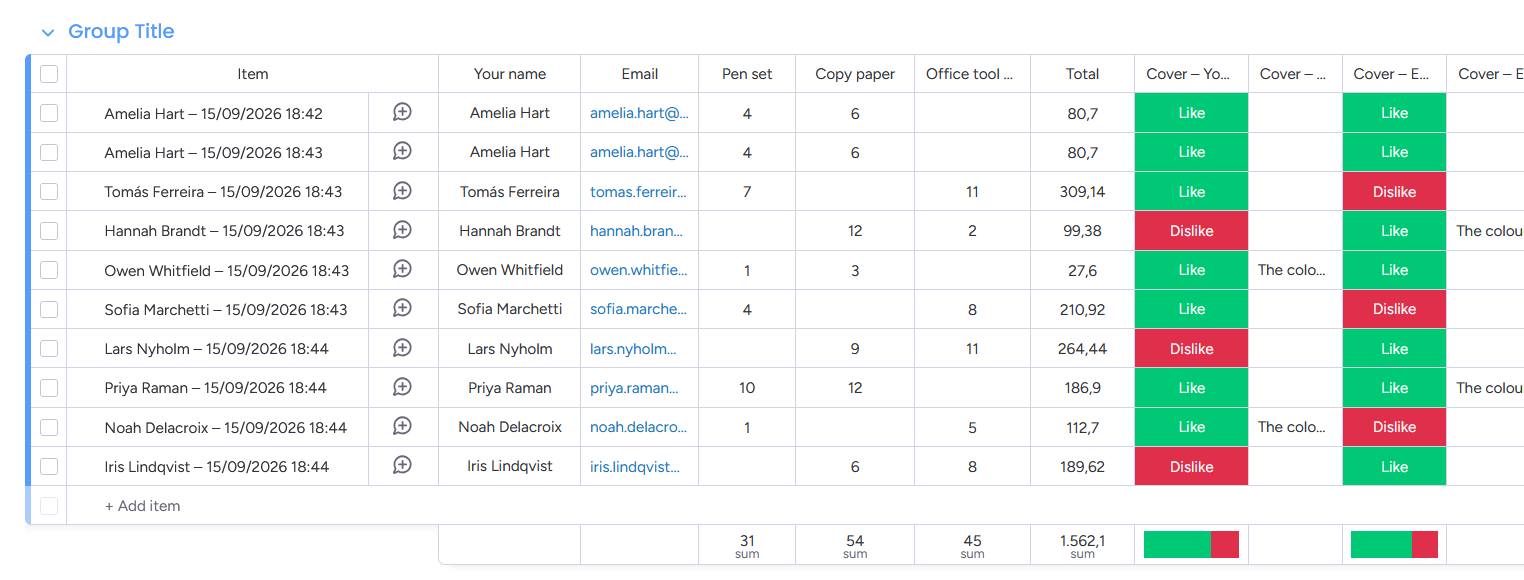
Each submission becomes one item on your board. ImageForm looks for a column that matches the question and writes the answer there; if there is none, it creates one of the right type and puts it where the question sits in the form.
Existing columns are never renamed or changed. If you rename a column later, ImageForm keeps writing to it — the link is remembered, not guessed from the name.
Two questions, one column
Sections often ask for the same thing twice — a phone number in one branch and in the other. Under Column in the board you can tick the questions that should share a column. Since only one section ever applies, they never overwrite each other, and the board keeps one clean column instead of two half-empty ones.
Time of submission
By default the date and time are appended to the item name. Under Settings › Board & columns you can have them written to a date column of their own instead — then you can sort and filter by them, which the suffix on the name does not allow.
Reading a response back
Switch on Response view and every submission gets a link in a column of its own. It opens a page with all answers, each with a copy button next to it — the delivery address comes out the way you would write it on an envelope, in one go. With PDF export switched on, the PDF can be downloaded there too. Switch the view off again and existing links stop working, so you can take it back at any time.
For a form that is filled in together, the view opens once everyone has finished. While it is still going round, the link says so instead — the answers grow with every stage, and a link handed out early would otherwise show whoever holds it what the people after them wrote.
14 Fill one form together
Some forms are not one person's job. A holiday request is filled in by the person asking and signed off by their manager. An order is placed by the team and priced by purchasing. A handover form starts on the shop floor and ends in the office.
Co-fill cuts a form into stages. Add a Pass on block where the first person's part ends. Everything above it belongs to them; everything below it they never see — not greyed out, not hidden by a stylesheet, but absent from the page that reaches them. Two blocks make three stages, and so on.
What each person sees
The first person fills in their part and clicks a button that says what happens next — you choose the wording, so it can read Send for approval rather than Submit. The next person opens their own link and finds the earlier answers standing above their own questions: readable, but not editable. They are the context for the decision, and nobody can quietly revise them on the way through.
Who gets it next
Two choices, set in the Pass on block. The sender picks leaves an address field on the form — useful when it is a different manager each time. Always the same person lets you choose from everyone with access to the board, with their name and picture, so you are not typing addresses from memory.
Picking someone from that list does more than note an address: the item in your board is assigned to them. It turns up under Assigned to me, monday notifies them the way it notifies them about everything else, and your own automations have something to hang off. If that is enough on its own, switch on monday notifies them and the sender is told they need not send anything. Otherwise they get the link to pass on themselves.
ImageForm never sends email. Everything that reaches the next person comes from monday or from the sender — one less system holding your addresses, and notifications that follow the rules your team already set.
Following it in the board
The item is created as soon as the first person submits, not when the last one does. A form still going round is visible from the start, which is the whole point: three columns say where it stands.
Co-fill reads Waiting, Complete or Expired. Waiting for names whoever it went to. Assigned to is the real monday assignment. The View column carries one link whose meaning follows the state — Continue while the form is still out, View once it is done.
Deadlines and loose ends
Each Pass on block sets how long the person after it has — two weeks unless you say otherwise, anything from one day to ninety. The clock starts the moment the form is passed on, and whoever is holding it sees the time left below the button. The first section has no deadline and cannot have one: before the first submission nobody is waiting, and there is nothing yet that could expire.
If nobody finishes it in time, the link stops working and the board says Expired, with the name of whoever it was waiting for still in place so you can see where it stuck. Passing a form on also retires the previous link, so only the newest one ever works — an old link in an old email leads nowhere.
A form counts as one submission when it is finished, not once per stage. A form that passes through three hands uses one of your monthly submissions, and one that nobody finishes uses none.
Editing the form while a handover is out is fine — adding questions, renaming them, moving them around. Removing a Pass on block is the exception: the stages are cut at those blocks, so without it there is no longer a way to tell which part of the form belonged to whom. Links already sent then stop working and say so, rather than guessing and showing someone a part that was never meant for them. If that happens, start the form again.
The Pass on block belongs at the top level of the form, not inside a section. A cut that is only there depending on an earlier answer would give the form two stages on some days and one on others — and nobody could explain why the button changed its name overnight. The builder says so if you try.
15 Plans and limits
Every account starts with a 14-day trial. After that you can stay on the free plan or pick a paid one. What separates the plans is the number of forms you run — every paid plan has the same features, so you never lose a capability by choosing a smaller one.
| Plan | Forms | Responses / month | Monthly | Yearly |
|---|---|---|---|---|
| Trial (14 days) | 5 | Unlimited | – | – |
| Free | 3 | 20 | $0 | – |
| Start | 5 | 1,000 | $29 | $278 |
| Standard | 12 | 2,000 | $59 | $566 |
| Pro | 30 | 5,000 | $119 | $1,142 |
| Max | Unlimited | 20,000 | $239 | $2,294 |
Paying yearly saves about 20 per cent.
One board holds one form, so the number of forms is really the number of boards you collect responses on. The response figures are there to keep the service fair, not to sell you a bigger plan — normal use never reaches them.
If your account holds more forms than your plan covers — after moving to a smaller plan, for instance — the oldest forms stay active and the rest are put on hold. Nothing is deleted: a form on hold can still be edited and saved to a file, it just stops accepting responses until you delete an older form or move up a plan.
Billing runs through monday, on the same invoice as your other apps. You can see your current plan and usage in the account menu inside the builder.
Check the current figures on the ImageForm page in the monday marketplace — the table above is a summary and the plans may have changed since this page was written.
16 Common questions
Do people filling in the form need a monday account?
No. They open a link and see only the form. They have no access to your board and no way to see other people's responses.
That holds for co-fill too: the next person fills in their stage from a link, account or not. An account only matters if you want monday to do the notifying — assigning an item needs someone monday knows. Anyone else gets the link from whoever passed it on.
Can I use ImageForm on more than one board?
Yes. Each board has its own form, and your plan says how many forms you can run at once — five on Start, twenty on Standard, and so on. The limit covers the whole account.
What happens to my images if I remove an option?
Nothing straight away. Images stay for two weeks after they stop being used, so undoing a change gets them back. After that they are deleted.
What happens if I uninstall the app?
Your access token is deleted immediately and your forms, images and responses are deleted within ten days. Items already written to your board are yours and stay untouched.
Can I change the language?
The builder is available in English and German; switch it under Interface language in the account menu, top right. The form your recipients see has its own language setting under Settings → Language, so an English builder can produce a German form.
What ImageForm writes into your board — column headings like Submitted at or Waiting for, and the labels of a status column — follows the language monday is set to for you, not the language of the form. Your team reads the board; the people filling in the form do not. So an English form can collect answers into a German board without either side reading the wrong language.
Column headings are written once, when the column is created, and are never renamed afterwards — your columns are yours. Switching a language therefore changes new columns, not the ones already in your board.
17 Watch it in action
An overview first, then short videos with one feature each. They play from this site — nothing is loaded until you press play.
18 What's new & next
The same list you see inside the app, under What's new & next in the account menu.
Loading…